Got a message sitting there and you want to read it before deciding how to respond. The half swipe on Snapchat lets you peek at a chat without triggering the opened status. Still works in 2026 on mobile. Here is how to do it.
What Half Swiping Does
Normally opening a Snapchat chat sends the other person an Opened notification. Half swiping slides the conversation partway across without fully triggering that. You see the message. They do not get the alert.
It works on text messages only. If someone sent a Snap photo or video opening it always notifies them regardless of how carefully you do it. No workaround for that.
One thing to be aware of: if the person has Snapchat Plus and has enabled a feature called Peek-a-Peek they will get a notification that you peeked at their chat even without fully opening it. So it is not undetectable in every case.
How to Half Swipe on iPhone and Android
- Open Snapchat and go to your Chat screen
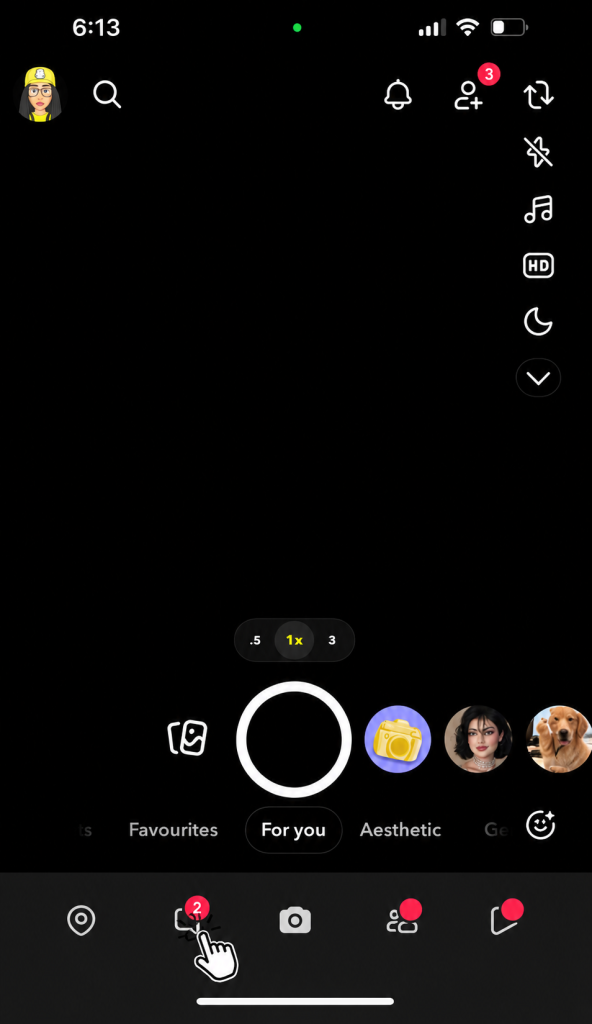
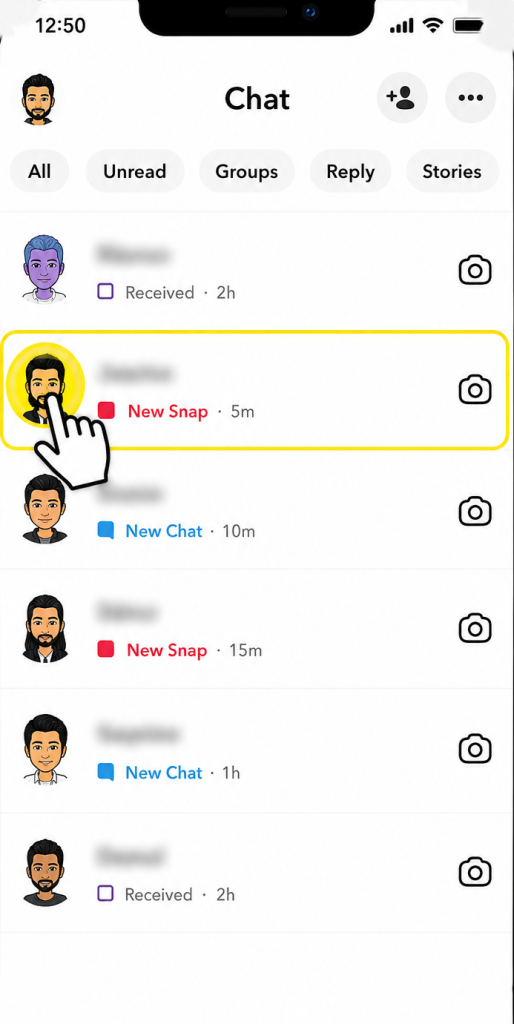
- Press and hold your finger on the person’s Bitmoji or profile icon on the left side. Do not tap the chat directly

- Slowly slide your finger to the right just far enough to see the message. Do not go all the way across
- Keep your finger on the screen the whole time you are reading
- Slide your finger back left slowly until the chat closes then lift your finger
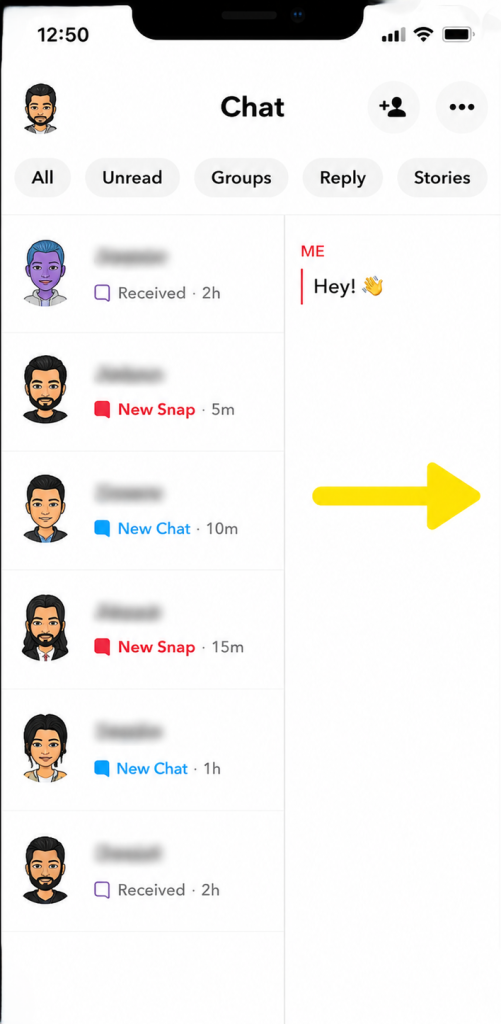
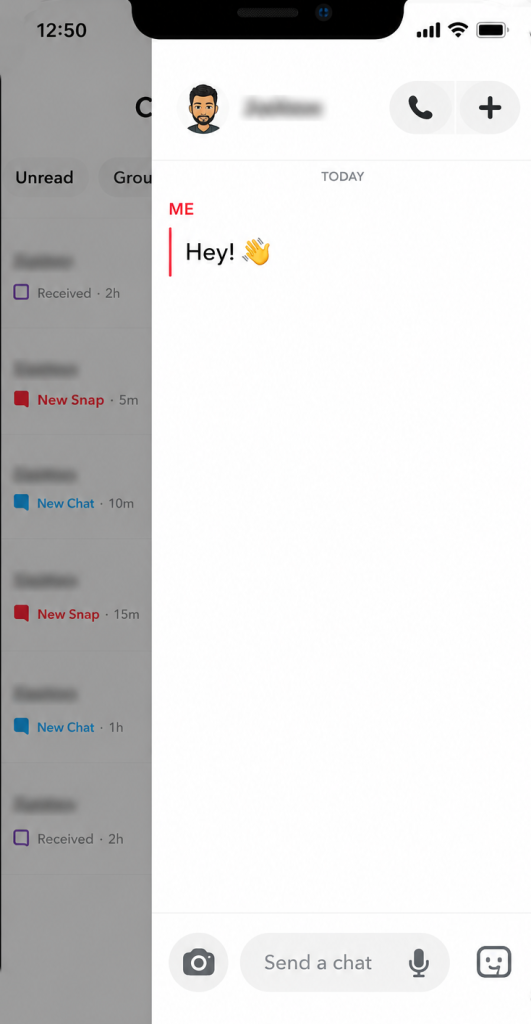
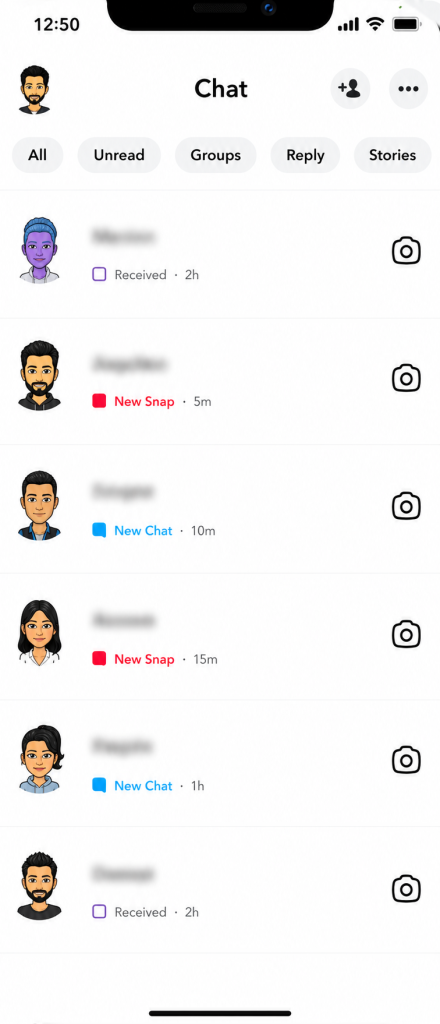
Slow is the whole thing here. A fast swipe opens the chat fully and the notification goes out. Android and iPhone both use the same steps though screen sensitivity varies by device so it may take a couple of tries.
Does Half Swipe Work on PC or Snapchat Web?
No. Snapchat Web does not support swipe gestures. Clicking any chat opens it immediately and marks it as read.
There is no way to replicate the half swipe using a mouse or trackpad because the feature depends on touch input.
On PC your best options are reading the message preview in your notification bar before opening Snapchat or using your phone to half swipe instead.
Why It Sometimes Fails
Half swiping has become trickier with some Snapchat updates. If it is not working these are the usual reasons.
- Swiping too fast:Most common reason. Slow it right down.
- Lifting your finger too early:Keep it on screen the entire time. Letting go before sliding back can trigger the read receipt.
- Going too far across:You only need to move your finger enough to see the message. Halfway is already too far for most chats.
- Recent app update:Some Snapchat updates affect how the gesture registers. If it stopped working after an update that is probably why.
- Screen protector or sensitivity settings:Thick screen protectors or low touch sensitivity can make precise swiping harder to pull off.
Alternatives When Half Swipe Is Not Working
- Notification previews:If Snapchat notifications are turned on you can read the message text in your notification bar without opening the app at all.
- Airplane mode method:Enable airplane mode before opening Snapchat then read the message. Close the app fully before turning internet back on. Only works reliably if you also clear the app cache before reconnecting.
Frequently Asked Questions
Q – Does half swiping still work in 2026?
Yes on most iPhones and Android devices when done carefully. Less reliable than it used to be after various app updates but still functional for the majority of users who take it slow.
Q – Will the person know I half swiped their message?
Not usually. But if they have Snapchat Plus with Peek-a-Peek enabled they will see a notification that you peeked even without fully opening the chat.
Q – Does half swipe work for Snap photos and videos?
No. Only text messages in chat. Opening a Snap photo or video always sends an opened notification no matter what.
Q – Can you half swipe on Snapchat Web?
No. Opening any chat on Snapchat Web marks it as read straight away. No gesture equivalent exists on desktop.
Q – What is Peek-a-Peek on Snapchat?
A Snapchat Plus feature. When enabled it notifies the sender that someone peeked at their chat without fully opening it. So even a successful half swipe can show up if the other person has this switched on.
Final Thought
Press on the Bitmoji not the chat, slide right slowly with your finger staying on screen and slide back before lifting. That is the whole trick. It works on mobile and not on PC. And if the other person has Peek-a-Peek on through Snapchat Plus they may see you tried anyway.