
I lost a video I actually cared about once. Posted a Snapchat story of my dog doing something ridiculous, went to bed and by morning it was just gone, the way Snapchat stuff always is. That’s kind of the whole point of the app though. Snaps clear out the moment everyone’s seen them. You’ll usually see stories vanish within a day or so, honestly. No big deal if you’re just clowning around with friends. Not so fine when it’s something you actually wanted to keep. So here’s what I’ve learned about saving your own Snapchat content before it disappears on you too.
Why Your Snapchat Content Disappears So Quickly
Snapchat was never meant to be permanent. That’s the whole design. Send someone a snap one on one and Snapchat wipes it from their servers the second everyone in that chat has opened it. Ignore it and it vanishes on its own after 31 days anyway. Stories follow a different set of rules though. Most expire 24 hours after you post them, sure, but that’s not carved in stone. Turn on auto save to Memories, post it to your public profile or get a friend to save it in chat. Do any of that and pieces of the story can survive even after it vanishes from your profile. Snapchat+ subscribers get even more control here, sinceMy Story Timer lets you set a story to expire anywhere from 1 hour up to a full week instead of sticking with the default. Bottom line, that 24 hour window is more of a default setting than a hard guarantee. Which is exactly why it pays to save things ahead of time if a post actually matters to you.
Turn On Memories Before You Post Anything
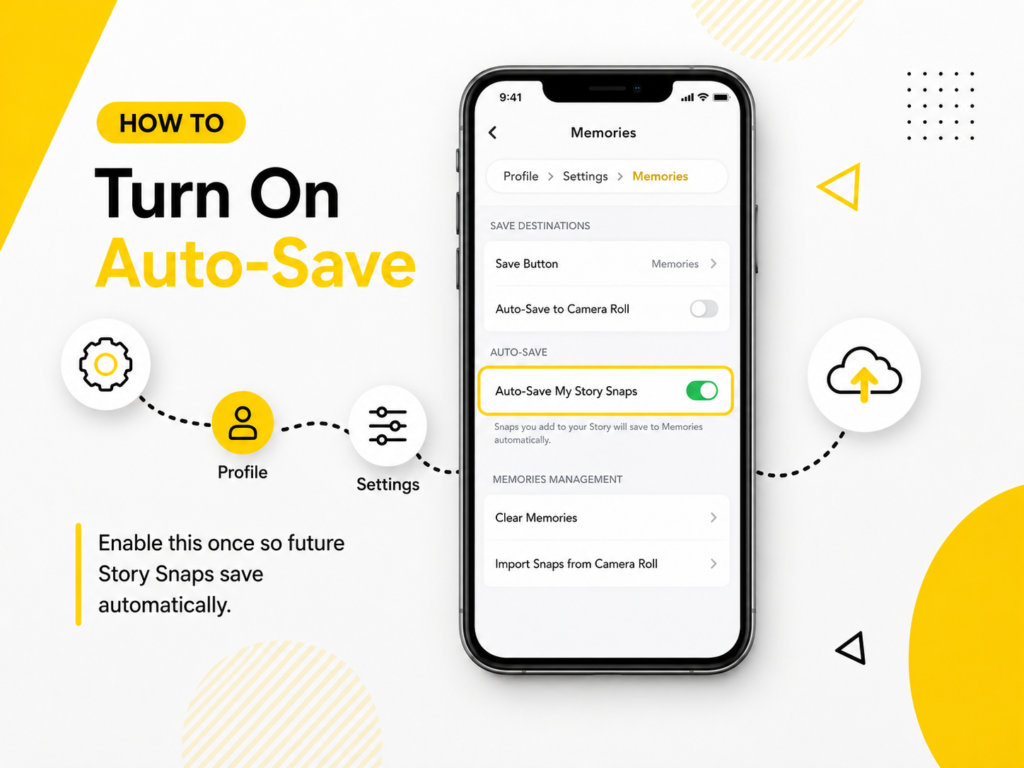
Honestly, it took me forever to find this setting. Turns out Snapchat already has a built-in feature called Memories that’ll back up your snaps and stories automatically once you flip it on. Dig through Settings, then App & Privacy, then My App, then Memories and you’ll land on the right screen. Turn onAuto-Save My Story Snaps so every story you post gets backed up the moment it goes live. While you’re in that same Memories menu, check theSave Button option too, since it controls whether individual snaps you capture save to Memories, your camera roll or both. Do it once and forget about it.
Save Snaps and Stories Manually From Your Phone
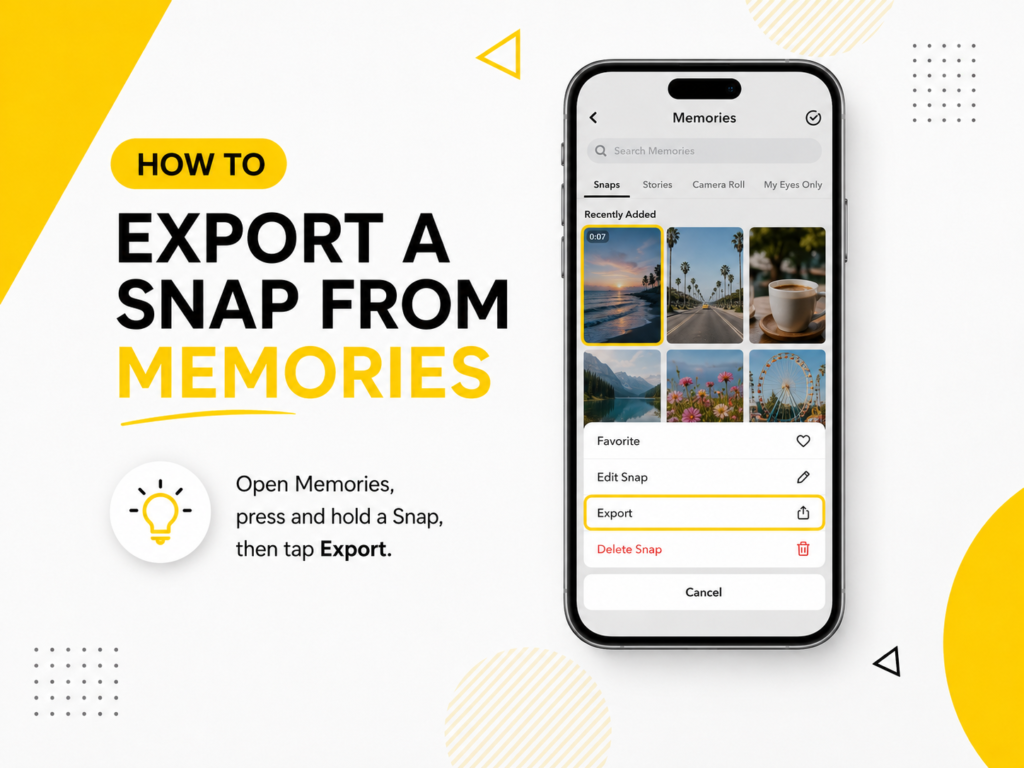
Didn’t have Memories turned on before you hit post? Happens to literally everyone at some point. You can still grab those snaps one at a time, just manually instead of automatically. Pop open your profile, hit Memories, then scroll back through whatever you posted recently. Press and hold on the one you want, then Export it or Save to Camera Roll, whatever your phone gives you as an option. The file drops straight into your gallery and just sits there, long after the original post on Snapchat has expired or been deleted. Doesn’t matter whether you’re on an iPhone or Android phone either, the process is basically identical.
Back Up Public Stories With a Snapchat Story Downloader

Sometimes all you want is a clean backup of a public post, nothing fancy, no messing with app settings or storage limits. That’s where a tool like theSnapchat Story Downloader from ViewSnapStories comes in handy. A lot of creators swear by it for exactly this reason. Type in your own username or profile link and up pop the public snaps and stories tied to that account. ViewSnapStories claims no login and no app install needed, with files arriving in their original quality. That’s their claim though, not something Snapchat itself backs up or guarantees. And it only works if the account is public in the first place. Worth remembering though, public doesn’t mean fair game. Seeing something doesn’t give you the right to repost it elsewhere. Stick with your own stuff or things you’ve actually got permission to use.
Export Your Full Snapchat Data From Settings
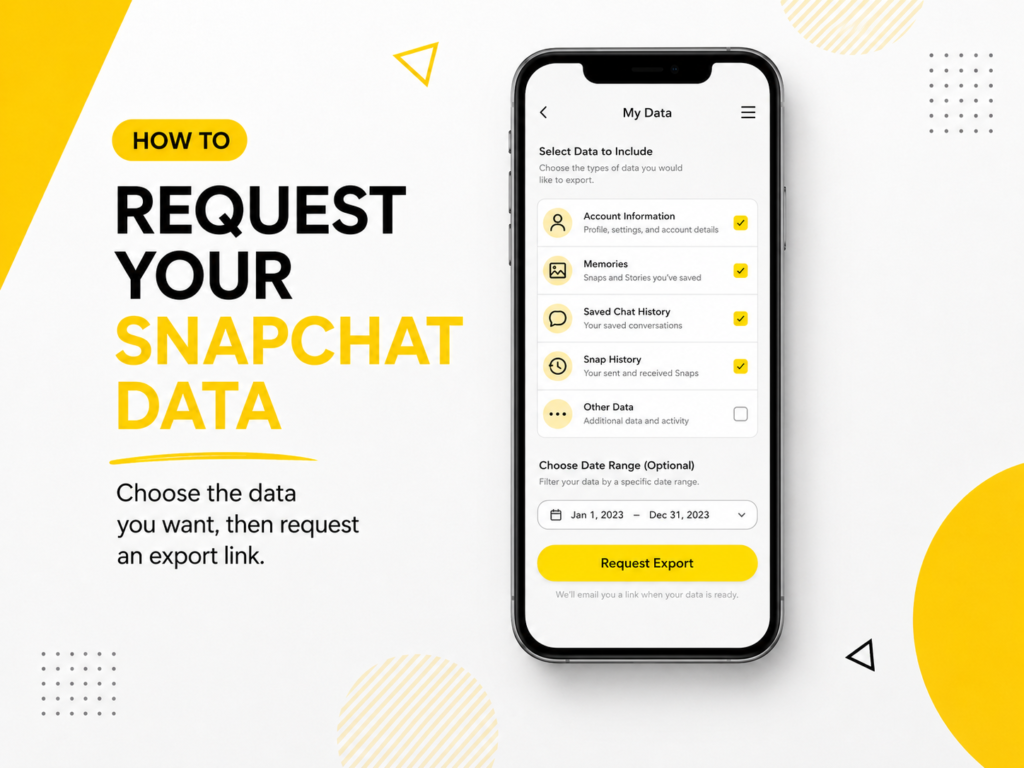
Rather just grab everything in one shot instead of one post at a time? Snapchat lets yourequest a full export of your account data through accounts.snapchat.com or from Settings in the app under My Data. You’ll pick your categories, maybe set a date range or just skip that part and grab everything. Confirm which email should get notified, hit submit and you’re done. From what Snapchat says, smaller requests land in about a week, though bigger ones drag on longer. Just want your saved snaps and stories instead of your whole account history? Go for the Memories-only option instead. Either way, doing this every couple of months isn’t a bad habit if you post a ton.
Simple Habits That Keep Your Content Safe
None of this has to be a whole production. Turn on auto save through Memories once and forget about it. Every now and then, peek at your camera roll or Memories folder just to double check everything’s actually saving how you’d expect. Bookmark a downloader tool too, for whenever you need a fast public backup without digging through the full app. Every few months, go ahead and run a full data export too, particularly if you post constantly or dig up old clips for other projects. Little habits like these spare you a ton of hassle later.
Final Takeaway
Snapchat’s whole design is built around things disappearing, that much is true. But it doesn’t mean you have to actually lose the stuff you care about. Between Memories, manual saves, a decent story downloader and the full data export option, you’ve got more than enough ways to hang onto your own posts. Just pick whatever method fits how often you post, then stick with it. And stick to saving or reusing content you actually have rights to. Follow that and you won’t ever find yourself scrambling to recover something that’s already long gone.
Frequently Asked Questions
Does Snapchat notify anyone when I save my own content?
Nope. Doesn’t matter if you use Memories or a downloader tool, saving your own stuff never triggers any kind of alert. Makes sense when you think about it, it’s your account and your content after all.
What happens if I forget to turn on Memories before posting?
You’re still okay. Just save it manually from your Memories tab while it’s still within that window before it expires. And if it’s already backed up somewhere else, exporting it later is always an option.
Can I save someone else’s public story the same way?
Technically, yes, as long as the account is public. But this guide is really about protecting your own content. If you do save someone else’s public story, treat it as something for your own viewing, not something to repost. Being public doesn’t hand you republishing rights.
Is there a limit to how much I can save?
Not really for the average person. Snapchat Memories gives you a generous amount of storage. Heavy posters might eventually want to shift older files onto their own device just to keep things organized.
Does my data export include everything I’ve ever posted?
Not always, no. Different types of information stick around for different lengths of time on Snapchat’s end. So older stuff might already be gone by the time you get around to requesting an export.
Should I rely on Memories alone or also use a downloader tool?
Honestly, use both. Memories handles your everyday backups automatically. A downloader tool comes in handy for grabbing a public story on the spot, especially when you’re on a browser instead of the app.